Perplexity Computer Masterclass for Beginners (FULL COURSE)
Perplexity Computer has replaced 2 full time virtual assistants in just a few months (over $3,000 per month in payroll savings).
Perplexity Computer has replaced 2 full time virtual assistants in just a few months (over $3,000 per month in payroll savings).
I've used it to automate real work, connect to my tools, generate reports, do research, and so much more.
The single biggest unlock for me (and for you) is learning how to set Computer up properly from the start and knowing what exactly it's capable of.
This is a full course on everything you need to know about Perplexity Computer, clearly explained so that the everyday non-technical person can get maximum value.
Table of Contents
- What Computer Is (And Why It Matters)
- How To Set It Up
- Multi Model Orchestration (The Secret Weapon)
- The Connectors
- The Credit System
- Underrated Features Most People Miss
- What Computer Is Great At (And What To Avoid)
- Computer vs. Claude Cowork vs. OpenClaw
- Real Setup Walkthrough (Step by Step)
- The Bottom Line + Action Items
Section 1: What Perplexity Computer Actually Is (And Why It Matters)
Computer is a digital worker that lives inside your Perplexity account. You describe what you want done. It breaks that into subtasks, automatically assigns each one to the best AI model for the job, and works autonomously until it's finished.
This isn't a chatbot. It's an agent. The difference is massive:
Chatbots wait for you to give them input. They answer one question at a time. They don't remember context across sessions. They can't connect to your tools.
Agents take a goal, plan the steps needed to reach it, execute those steps across multiple tools and systems, and report back when they're done. They remember everything you told them. They work while you sleep.
Computer runs inside an isolated cloud sandbox with tools pre-installed. Nothing touches your local machine. If something breaks, the failure stays contained. You're not exposing your business to risk.
Real use cases from the first week:
- Market research: Research 5 competitors in your industry, create a comparison table with pricing/features/target audience, and deliver it as a Google Sheet
- Content creation: Analyze your top 10 performing tweets, extract the patterns, and generate 20 new tweet ideas in your exact voice
- Data analysis: Connect your Snowflake database, run analysis on Q1 performance, and email the report to your team
- App building: Build a full web app from a PRD (product requirements doc), test it, and deploy it to production
- Workflow automation: Every Monday morning, pull your calendar, summarize your key meetings, and draft prep notes for each one—automatically
That last one alone is worth the subscription. Set it once, it runs forever.
Section 2: How to Set It Up (First Time User)
Step 1: Get the right subscription
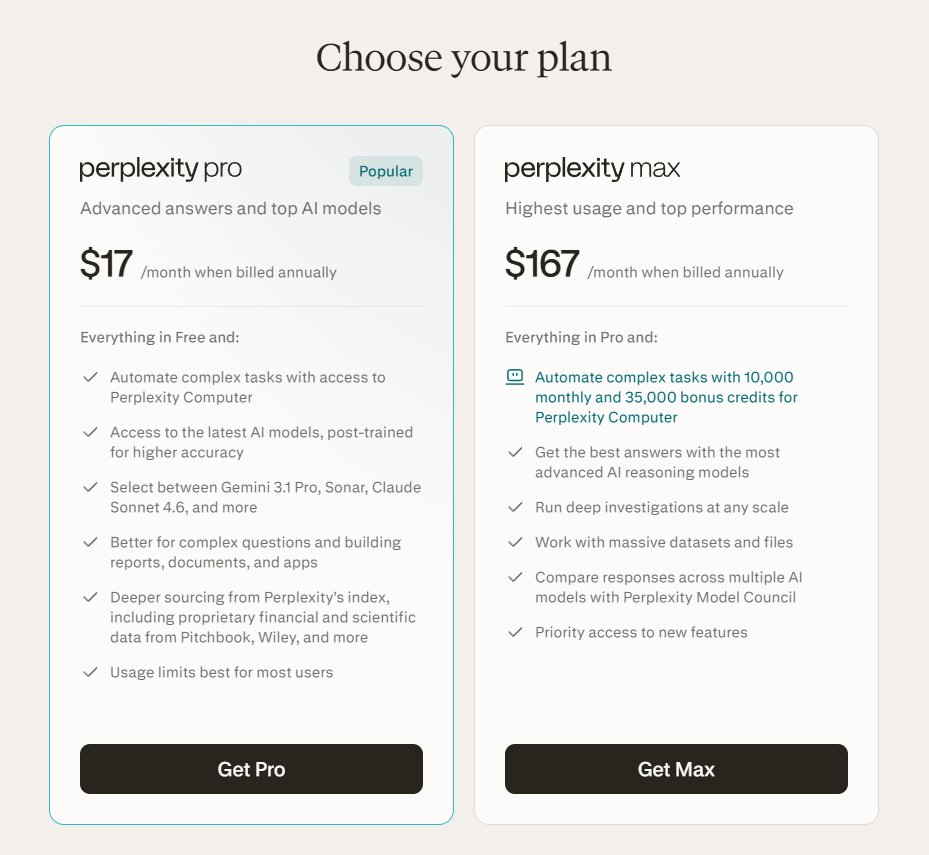
Computer requires Perplexity Pro ($20/month) or Perplexity Max ($200/month) (or $17/mo for Pro, $167/mo for Max when billed annually). Pro will get you started and teach you how to use it. Max is for heavy users or teams.
Start with Pro. You'll get monthly credits. When you understand how it works, you can upgrade if you need more capacity.
Step 2: Access Computer
Once subscribed, you'll see "Computer" in the Perplexity interface. Click it. That's your command center. The interface is simple: a text input field for your task, a view of what Computer is currently working on, and a history of completed tasks.
Step 3: Connect your tools (This is where the power unlocks)
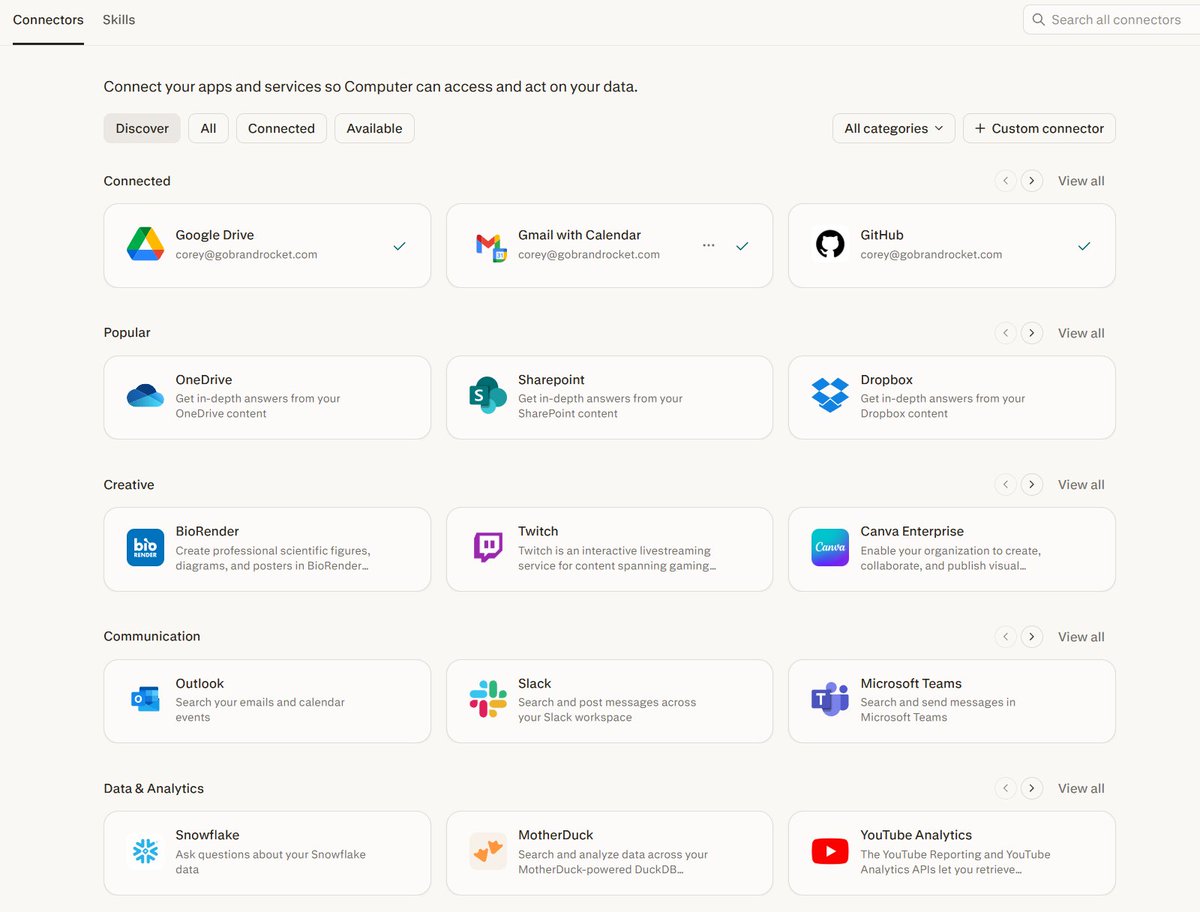
In the Computer panel, go to Connectors. This is where it gets powerful. You'll see 400+ apps available through managed OAuth connections. Each connector takes about 30 seconds to set up. Click Enable, authorize with OAuth, done.
Start with these core connectors:
- Gmail / Google Calendar — Read and send emails, manage your schedule
- Slack — Pull conversation history, send messages, respond to mentions
- Notion — Read and write to your workspace databases
- Google Drive — Access docs, sheets, slides
- GitHub — Manage repos, create issues, review PRs
Pro tip: Connect everything, even tools you don't think you'll need. Computer pulls context from connected tools automatically when working on tasks. More connections = better context = better outputs.
Step 4: Give it your first task
Start simple. Something like:
"Research the top 5 competitors in [your industry] and create a
comparison table with pricing, features, target audience, and a one-
line summary of their unique value prop. Save it to Google Sheets."
Watch how Computer breaks the task down, assigns subtasks, and delivers results. That first task teaches you more about how Computer thinks than any documentation will.
Section 3: The Secret Weapon (Multi-Model Orchestration)
This is Perplexity's biggest differentiator and the thing most people don't fully appreciate.
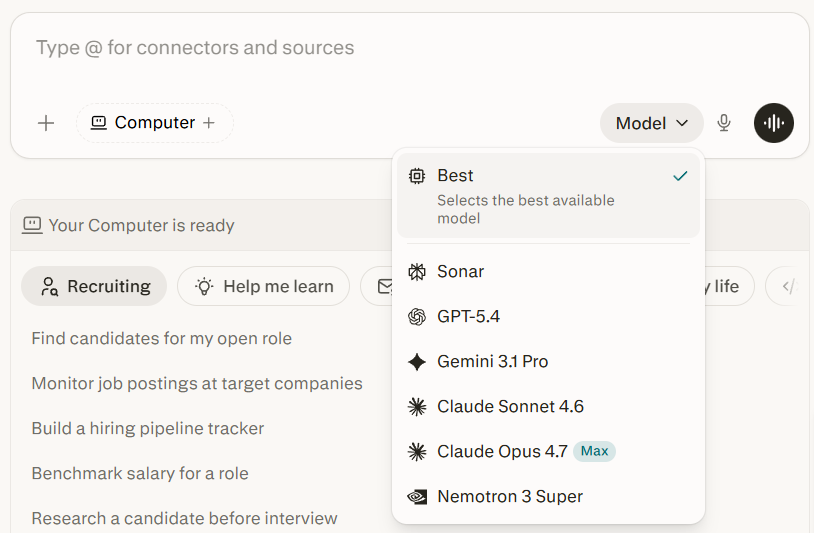
Computer doesn't use one AI model. It uses 19, and it routes each subtask to whichever model is best suited for that specific job:
- Claude Opus 4.7 (Anthropic) — Core reasoning engine. Handles complex decision-making and coordination.
- GPT-5.2 (OpenAI) — Long-context recall and broad web search. Great for synthesizing large amounts of information.
- Gemini (Google) — Deep research tasks. When Computer needs to go deep on a topic, Gemini handles it.
- Grok (xAI) — Lightweight, speed-sensitive operations. Quick tasks that don't need heavy reasoning.
- Nano Banana (Google) — Image generation.
- Veo 3.1 — Video production.
You don't choose which model to use. Computer decides based on the subtask. This is why the outputs are often better than what you'd get from any single model.
Example: A coding task might use Claude for architecture decisions, GPT-5.2 for pulling documentation context, and Grok for quick syntax checks—all in the same workflow.
This is why Computer often produces better results than throwing everything at Claude or GPT. It's not trying to be good at everything. It's routing to specialists.
Section 4: The Connectors
Connectors are what separate Computer from every other AI tool. Without them, it's just a smart chatbot. With them, it's an AI that can actually do things inside your business.
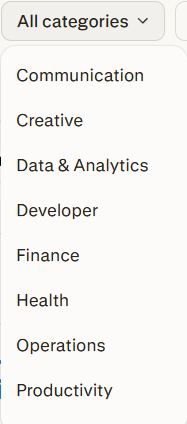
Productivity:
- Gmail, Outlook, Google Calendar, Google Drive, OneDrive, Box
Communication:
- Slack (both the connector for searching Slack data AND the Slack app for running Computer inside Slack)
- Microsoft Teams
Project Management:
- Notion, Asana, Jira, Linear, Confluence
Sales & CRM:
- Salesforce, HubSpot
Developer:
- GitHub, Vercel
Data:
- Snowflake, PostgreSQL
Custom:
- You can add your own via MCP server URLs with OAuth, API key, or open authentication
Pro tip #1: The Slack integration is actually two things. The Connector for Slack lets Computer search your Slack data from inside Perplexity.
The Slack App lets you run Computer directly inside Slack by messaging it. Use both.
Pro tip #2: Connect everything, even tools you don't think you'll need. Computer pulls context from connected tools automatically when working on tasks. More connections = better context = better outputs.
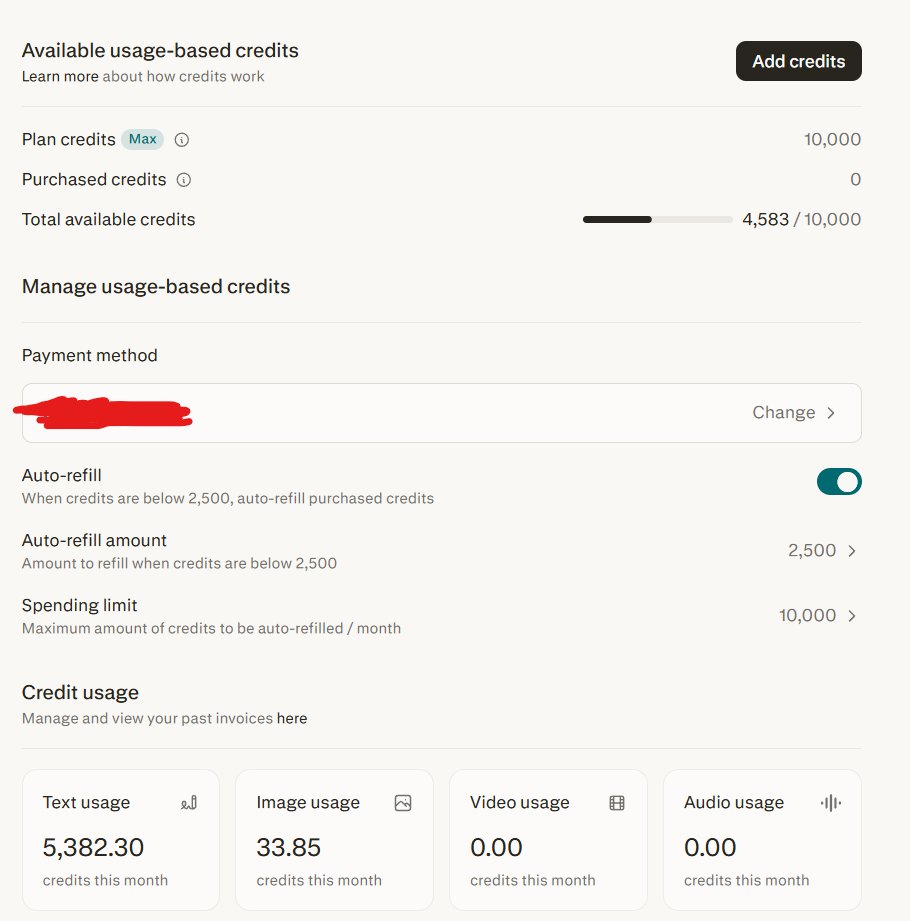
Section 5: The Credit System
Credits are how Perplexity meters usage. Higher subscription plans give you more credits per month. Credits are consumed per task based on complexity.
Credit ranges:
- Simple tasks (alt text, quick lookups): ~30 credits
- Medium tasks (research reports, email drafts): ~100-500 credits
- Complex tasks (building apps, extended coding): 1,000-5,000+ credits
What happens when you run out: Tasks pause (not cancel). They resume when credits refill at your next billing cycle or when you buy more.
Default settings:
- Auto-refill is OFF (intentional to prevent surprise charges)
- Monthly spending cap is $200 by default (adjustable up to $2,000)
- Maximum possible monthly spend: $400 (subscription + one refill)
- Unused credits expire at the end of each billing cycle
The biggest credit-waster: Vague prompts. "Make this better" triggers broad compute cycles across multiple models. "Rewrite the headline to include a specific benefit and reduce to under 10 words" uses a fraction of the credits for a better result.
My favorite hack: PRD-first workflow. Don't go straight to Computer with a complex build. Draft a PRD (product requirements doc) in Claude first.
Define exactly what you want: features, layout, copy, functionality. Then hand that PRD to Computer. It follows specs precisely, wastes fewer credits, and the output is dramatically better than a vague prompt.
Section 6: Underrated Features Most People Miss
1. Spaces
Spaces are persistent project environments. Create a Space for each major project or client. Upload reference documents, set context, and every task you run inside that Space has access to all of it.
Think of it like giving Computer a project brief that it never forgets. Instead of re-explaining your brand voice, target market, and content guidelines with every task, you set them once in the Space, and Computer remembers.
Example Space setup:
- Space name: "Podcast Production Q2 2026"
- Documents: Brand voice guide, episode template, guest interview questions, clip editing guidelines
- Result: Every task you assign in this Space automatically knows your show format, target audience, and production standards
2. Scheduled Tasks
Computer can run tasks on a schedule. "Every Monday morning, pull my calendar for the week, summarize my key meetings, and draft prep notes for each one."
Set it once. It runs forever. This alone is worth the subscription for anyone with a packed calendar.
3. Subagent Spawning
When Computer hits a complex task, it spawns subagents to parallelize the work. A market research task might spawn one subagent for competitor pricing, another for feature comparison, and a third for customer reviews, all running simultaneously.
This is why complex tasks finish faster than you'd expect. You're not waiting for serial execution. You're getting parallel work from a team of agents.
4. Skill Playbooks
Computer loads from 50+ domain-specific skill playbooks automatically. When you ask it to build a website, it activates the web development playbook. Research task? Research playbook.
It's pre-loaded with best practices for common workflows so you don't have to prompt-engineer everything from scratch.
5. Email Attachments
Recent update: Computer can now attach files to emails it sends on your behalf. If it generates a report and you ask it to email it to someone, the report goes as an attachment.
Small feature, huge time saver.
6. Voice Mode
Summon Computer via a dedicated taskbar shortcut on Mac. Use voice to give commands. "Research competitors in the fitness app space and create a pricing comparison table." Computer listens, understands context (what app you're currently using), and gets to work.
Section 7: What Computer Is Great At (And What to Avoid)
Computer Excels At:
- Research: Market analysis, competitor breakdowns, trend reports. It searches the web in real time and synthesizes across sources.
- Content creation: Reports, presentations, email sequences, landing pages.
- Data analysis: Connect Snowflake or upload CSVs and ask questions about your data.
- App building: Full web applications, dashboards, internal tools. It writes, tests, and deploys.
- Workflow automation: Recurring tasks on a schedule across your connected tools.
- Multi-step projects: Anything that requires coordinating research, writing, analysis, and action across multiple tools.
What to Watch Out For:
- Connector reliability varies. Most work great. Some (like Vercel) have OAuth tokens that expire frequently. GitHub sometimes needs manual token workarounds.
Test your connectors with a simple task before relying on them for something important.
- No live preview for code. When Computer builds something, you can't see it running in real time. You have to push it to external hosting to check. This creates a slow feedback loop for development tasks.
- Credits burn fast on stuck tasks. If Computer hits a dependency error and keeps retrying, it'll burn through credits without telling you why.
Monitor complex builds in real time, especially the first time you try a new type of task.
- Context can't be manually managed. There's no way to branch, clear, or summarize context mid-conversation. Long sessions can drift. Start fresh when switching to a different type of task.
Section 8: Computer vs. Claude Cowork vs. OpenClaw
These three aren't competitors. They're different tools for different use cases:
Perplexity Computer:
- Best for non-technical users who want zero setup, multi-model orchestration, and 400+ connectors out of the box
- $20/month base
- Cloud-based, sandboxed, safe
- No local machine required
- Web/app interface only
Claude Cowork:
- Best for users who want a personal AI workspace with deep customization, skills, and scheduling
- $20-200/month depending on plan
- Desktop app, more hands-on customization
- Great for people who want to build custom integrations
- Requires some technical comfort
OpenClaw:
- Best for technical users who want full control and unlimited customization
- Free but requires a dedicated machine, terminal access, and API key configuration
- Most powerful but highest friction to set up
- Can run 24/7 as a true autonomous system
- Self-hosted, completely private
All three can get the job done. Your choice depends on your technical comfort level and how much setup you're willing to do.
My take: Start with Computer. If you find yourself wanting more customization or local control, migrate to Cowork or OpenClaw. But for most people, Computer is the best risk-adjusted entry point.
Section 9: Real Setup Walkthrough (Step-by-Step)
Time to complete: 15 minutes
1. Subscribe to Perplexity Pro ($20/month)
- Go to perplexity.ai/subscribe
- Choose Pro
- Add payment method
- Confirm
2. Access Computer
- Log into your Perplexity account
- Look for "Computer" in the main navigation
- Click it
3. Connect Gmail
- Go to Connectors
- Find Gmail
- Click Enable
- Click "Authorize with Google"
- Grant permission
- Done
4. Connect Slack (repeat same process as Gmail)
5. Connect Notion (repeat same process)
6. Give it a test task
- In the task input box, type: "What are the top 3 competitors to [your business] and what are their main pricing plans?"
- Press submit
- Watch it work
That's it. You now have an AI employee.
Section 10: The Bottom Line
Perplexity Computer is the easiest way to get an AI employee running in your business today. No code. No terminal. No configuration files.
Connect your tools. Describe what you need. Let it work.
The credit system means you need to be intentional with your prompts. Vague asks waste money. Specific, well-scoped tasks get the best results.
Start with one recurring workflow. Something you do every week that takes 2-3 hours. Automate it with Computer. Once you see the time savings, you'll find ten more things to hand off.
Action Items
This week:
1. Subscribe to Perplexity Pro
2. Connect 3-5 tools (Gmail, Slack, Notion minimum)
3. Run 3 test tasks (simple → medium → complex)
4. Identify one recurring workflow to automate
Next week:
1. Set up that recurring workflow on a schedule
2. Monitor it for 2-3 runs
3. Adjust based on what you learn
4. Identify the next workflow to automate
The result: 5-10 hours per week back in your calendar. That's a part-time employee's worth of work. And you're only spending $20/month for it.
Get started: https://www.perplexity.ai/subscribe
-----
I hope you found this free course valuable.
Be sure to follow me @CoreyGanim as I post AI tips/tricks/guides every single day.
If you like this type of content then subscribe to my free newsletter where I post deep dive AI content every single week.