Ultimate Beginners Guide to Perplexity Computer
It's a fully functional cloud-based AI employee that coordinates 19 different models, connects to 400+ apps, and runs complex workflows in the background while you do other things.
Perplexity Computer is my favorite AI tool on the market right now.
It's a fully functional cloud-based AI employee that coordinates 19 different models, connects to 400+ apps, and runs complex workflows in the background while you do other things.
I've been using it for weeks. Here's everything I wish someone told me before I started.
PS: I recorded videos comparing Computer head to head against Claude Cowork and Manus. Computer smoked both of them.
Here's the Cowork comparison video, and here's the Manus video.
---------------------------------------
What Perplexity Computer Actually Is
Computer is a "digital worker" that lives inside your Perplexity account. You describe what you want done. It breaks that into subtasks, assigns each one to the best AI model for the job, and works autonomously until it's finished.
It's so much more than a chatbot. It's an agent that can research markets, build websites, write reports, send emails, analyze data, and create full applications, all without you watching over its shoulder.
Each task runs inside an isolated cloud sandbox (2 vCPUs, 8 GB RAM) with Python, Node.js, and standard Unix tools pre-installed.
Nothing touches your local machine. If something breaks, the failure stays contained.
How to Set It Up (First Time User)
Step 1: Get the right subscription.
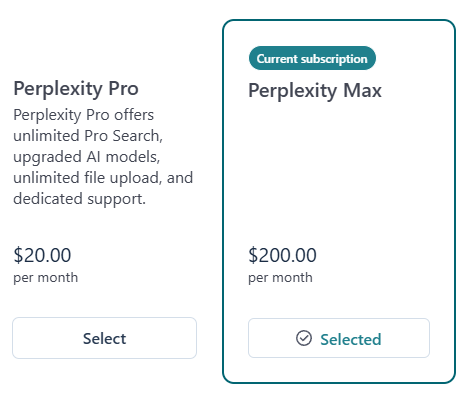
Computer requires Perplexity Pro ($20/month) or Perplexity Max ($200/month). I'm on the Max plan, but the Pro plan will give you enough credits to get you started.
Step 2: Access Computer.
Once subscribed, you'll see "Computer" in the Perplexity interface. Click it. That's your command center.
Step 3: Connect your tools.
In the Computer panel, go to Connectors. This is where it gets powerful. You'll see 400+ apps available through managed OAuth connections. Enable the ones you use daily.
Start with these:
- Gmail / Google Calendar (read and send emails, manage your schedule)
- Slack (pull conversation history, send messages)
- Notion (read and write to your workspace)
- Google Drive (access docs, sheets, slides)
- GitHub (manage repos, create issues, review PRs)
Each connector takes about 30 seconds to set up. Click Enable, authorize with OAuth, done.
Step 4: Give it your first task.
Start simple. Something like: "Research the top 5 competitors in [your industry] and create a comparison table with pricing, features, and target audience."
Watch how it breaks the task down, assigns subtasks, and delivers results. That first task teaches you more about how Computer thinks than any documentation will.
The Connectors (This Is the Real Moat)
Connectors are what separate Computer from every other AI tool. Without them, it's just a smart chatbot. With them, it's an AI that can actually do things inside your business.
Productivity: Gmail, Outlook, Google Calendar, Google Drive, OneDrive, Box
Communication: Slack (both the connector for searching Slack data AND the Slack app for running Computer inside Slack), Microsoft Teams
Project Management: Notion, Asana, Jira, Linear, Confluence
Sales & CRM: Salesforce, HubSpot
Developer: GitHub, Vercel
Data: Snowflake, PostgreSQL
Custom: You can add your own via MCP server URLs with OAuth, API key, or open authentication
Pro tip: The Slack integration is actually two things. The Connector for Slack lets Computer search your Slack data from inside Perplexity. The Slack App lets you run Computer directly inside Slack by messaging it. Use both.
Another pro tip: Connect everything, even tools you don't think you'll need. Computer pulls context from connected tools automatically when working on tasks. More connections = better context = better outputs.
How It Uses Different Models (Multi-Model Orchestration)
This is Perplexity's biggest differentiator and the thing most people don't fully appreciate.
Computer doesn't use one AI model. It uses 19, and it routes each subtask to whichever model is best suited for that specific job.
Here's how it breaks down:
- Claude Opus 4.6 (Anthropic): Core reasoning engine. Handles the complex decision-making and coordination.
- GPT-5.2 (OpenAI): Long-context recall and broad web search. Great for tasks that require synthesizing large amounts of information.
- Gemini (Google): Deep research tasks. When Computer needs to go deep on a topic, Gemini handles it.
- Grok (xAI): Lightweight, speed-sensitive operations. Quick tasks that don't need heavy reasoning.
- Nano Banana (Google): Image generation.
- Veo 3.1: Video production.
You don't choose which model to use. Computer decides based on the subtask. This is why the outputs are often better than what you'd get from any single model.
A coding task might use Claude for architecture decisions, GPT-5.2 for pulling documentation context, and Grok for quick syntax checks, all in the same workflow.
The Credit System (Read This Before You Burn Through Them)
The higher subscription plan you're on, the more credits you get each month by default. Credits are consumed per task based on complexity.
Credit ranges:
- Simple tasks (alt text, quick lookups): ~30 credits
- Medium tasks (research reports, email drafts): ~100-500 credits
- Complex tasks (building apps, extended coding): 1,000-5,000+ credits
What happens when you run out: Tasks pause (not cancel). They resume when credits refill at your next billing cycle or when you buy more.
Auto-refill is OFF by default. This is intentional. There's a monthly spending cap set at $200 by default (adjustable up to $2,000). With default settings, your maximum possible monthly spend is $400: the subscription plus one refill.
Unused credits don't roll over. They expire at the end of each billing cycle.
The biggest credit-waster: Vague prompts. "Make this better" triggers broad compute cycles across multiple models. "Rewrite the headline to include a specific benefit and reduce to under 10 words" uses a fraction of the credits for a better result.
Underrated Features Most People Miss
1. Spaces
Spaces are persistent project environments. Create a Space for each major project or client. Upload reference documents, set context, and every task you run inside that Space has access to all of it.
Think of it like giving Computer a project brief that it never forgets.
2. Scheduled Tasks
Computer can run tasks on a schedule. "Every Monday morning, pull my calendar for the week, summarize my key meetings, and draft prep notes for each one." Set it and forget it.
This alone is worth the subscription for anyone with a packed calendar.
3. Subagent Spawning
When Computer hits a complex task, it spawns subagents to parallelize the work. A market research task might spawn one subagent for competitor pricing, another for feature comparison, and a third for customer reviews, all running simultaneously.
This is why complex tasks finish faster than you'd expect.
4. Skill Playbooks
Computer loads from 50+ domain-specific skill playbooks automatically. When you ask it to build a website, it activates the web development playbook. Research task? Research playbook.
It's pre-loaded with best practices for common workflows so you don't have to prompt-engineer everything from scratch.
5. Email Attachments
Recent update: Computer can now attach files to emails it sends on your behalf. If it generates a report and you ask it to email it to someone, the report goes as an attachment.
Small feature, huge time saver.
6. PRD-First Workflow (My Favorite Hack)
Don't go straight to Computer with a complex build. Draft a PRD (product requirements doc) in Claude first.
Define exactly what you want: features, layout, copy, functionality. Then hand that PRD to Computer.
It follows specs precisely, wastes fewer credits, and the output is dramatically better than a vague prompt.
What Computer Is Great At
- Research: Market analysis, competitor breakdowns, trend reports. It searches the web in real time and synthesizes across sources.
- Content creation: Reports, presentations, email sequences, landing pages.
- Data analysis: Connect Snowflake or upload CSVs and ask questions about your data.
- App building: Full web applications, dashboards, internal tools. It writes, tests, and deploys.
- Workflow automation: Recurring tasks on a schedule across your connected tools.
- Multi-step projects: Anything that requires coordinating research, writing, analysis, and action across multiple tools.
What to Watch Out For
Connector reliability varies. Most work great. Some (like Vercel) have OAuth tokens that expire frequently. GitHub sometimes needs manual token workarounds.
Test your connectors with a simple task before relying on them for something important.
No live preview for code. When Computer builds something, you can't see it running in real time. You have to push it to external hosting to check. This creates a slow feedback loop for development tasks.
Credits burn fast on stuck tasks. If Computer hits a dependency error and keeps retrying, it'll burn through credits without telling you why.
Monitor complex builds in real time, especially the first time you try a new type of task.
Context can't be manually managed. There's no way to branch, clear, or summarize context mid-conversation. Long sessions can drift. Start fresh when switching to a different type of task.
Computer vs. Claude Cowork vs. OpenClaw
Perplexity Computer: Best for non-technical users who want zero setup, multi-model orchestration, and 400+ connectors out of the box. $20/month. Cloud-based, sandboxed, safe.
Claude Cowork: Best for users who want a personal AI workspace with skills, scheduling, and deep tool integration. $20-200/month depending on plan. Desktop app, more hands-on customization.
OpenClaw: Best for technical users who want full control and unlimited customization. Free but requires a dedicated machine, terminal access, and API key configuration.
All three can get the job done. Your choice depends on your technical comfort level and how much setup you're willing to do.
The Bottom Line
Perplexity Computer is the easiest way to get an AI employee running in your business today. No code, no terminal, no configuration files. Connect your tools, describe what you need, and let it work.
The credit system means you need to be intentional with your prompts. Vague asks waste money. Specific, well-scoped tasks get the best results.
Start with one recurring workflow. Something you do every week that takes 2-3 hours. Automate it with Computer. Once you see the time savings, you'll find ten more things to hand off.
PS: I recorded videos comparing Computer head to head against Claude Cowork and Manus. Computer smoked both of them.
.Here's theCowork comparison video, and here's theManus video